
Open the Bulin 47 template, add one clear portrait, review the available output and credit cost, then create your video. Follow its task in History and watch the complete result before downloading.
Bulin 47 Freestyle
One photo. The red-lit street freestyle scene.
Open this template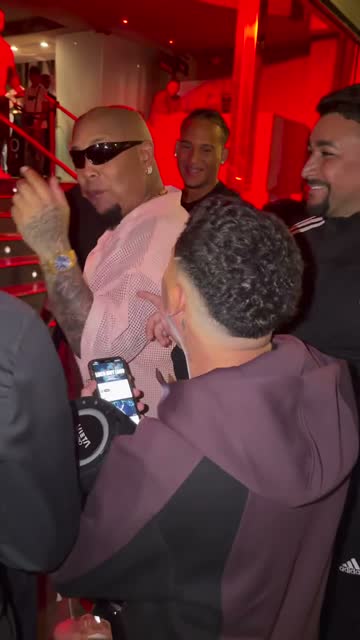
Before you make a Bulin 47 AI video
You need one clear portrait of the adult who should take the main role. The template provides the red-lit street freestyle and performance direction; your photo supplies the appearance reference. You do not need to recreate the background or wear the reference character's sunglasses. Watch the scene reference first and check whether that performance fits your idea. Its footage shows the intended scene, not a verified result from your own portrait. The surrounding crowd and speaker-holder are not additional photo roles. Choose another workflow if you need new lyrics or a completely different setting.
Use your own photo or one you are entitled to process with the pictured adult's agreement. Confirm that agreement before generating, and check the current template requirements rather than relying only on a gallery preview.
Make your video in three steps
Add one portrait for the main performer
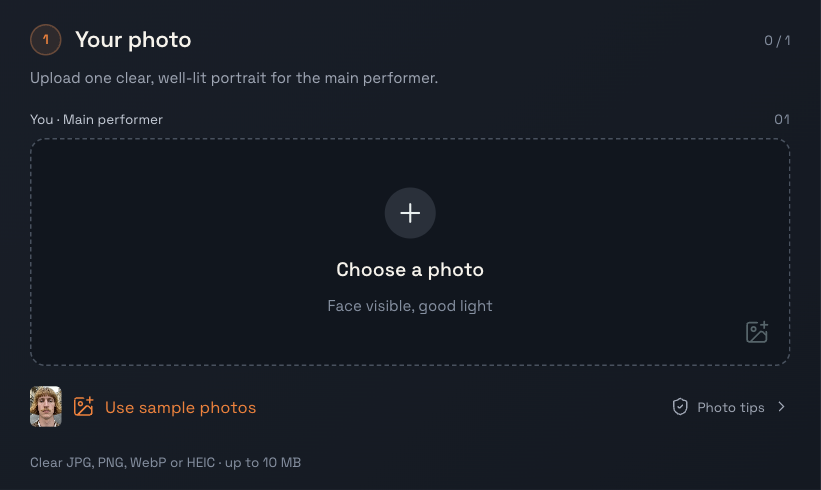
Open the Bulin 47 template and choose a photo for the main performer slot. Use the uploader on that page; the screenshot in this guide is an illustration. Check the thumbnail after selecting your file. The full head, visible eyes and mouth, and natural facial detail should remain recognizable. Replace a blurred, covered or tiny face before submitting. A group photo leaves the intended identity unclear, so choose an individual portrait instead. The background in the upload is not a scene selector. A simple indoor picture can still provide the identity reference for the template's street performance.
Review the output and credit quote
Read the duration, aspect ratio, quality and sound information in the template's output summary. Start with the offered defaults and change only options actually available there. A setting shown on another template does not automatically apply to Bulin 47. Check the quoted credits again after changing an option. Pricing describes packs and plans, while this generator shows the cost of the selected attempt. Estimated pack allowances do not mean every output uses identical credits. Sign in with the account whose balance you intend to use, then review the portrait and quote together before generating.
Browsing the reference and checking the quote do not require a generation. Submit once you are ready for that attempt; repeated accepted submissions can create separate paid tasks.
Generate once, then review the moving result
When the portrait, permissions and quote are settled, submit and follow the task in the result view or History. Use the same account when returning. Queueing, generation and saving are different stages, and a slow response is not proof that submission failed. Check the existing task before starting another attempt. When playback becomes available, watch the whole clip with sound. Inspect the face during head turns, gestures and fast movement, then check hands, clothing and the ending. Download the available MP4 for a copy on your device. Learning how to make a Bulin 47 AI video includes reviewing that completed file, not only its opening frame.
Open HistoryA better photo is the best place to start
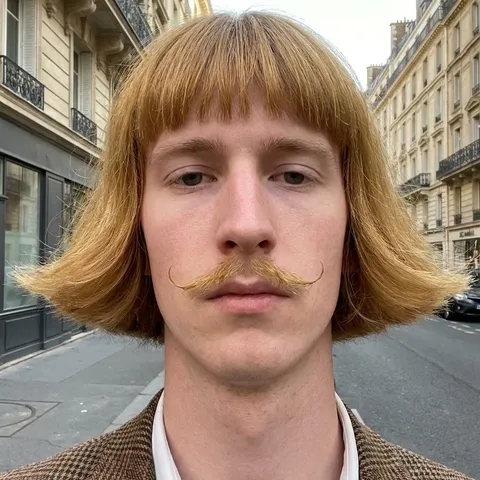
Use a sharp portrait with even light across the face and enough room for the hair, whole head and shoulders. A bright background can leave the face too dark, while heavy smoothing can change the features you want to preserve. Choose visible eyes and mouth even though the reference lead wears sunglasses; the model needs a clear appearance reference before interpreting the performance. Enlarging a tiny screenshot does not restore missing detail. If two photos seem suitable, compare their faces at normal viewing size and choose the clearer one. Review the upload preview before spending credits.
Choose a photo with…
- One person facing the camera or turned slightly.
- A sharp face, visible eyes and mouth, and even light.
- Enough detail around the hair, head and shoulders.
Try another photo if…
- Sunglasses, a mask or a hand hides the face.
- The picture is dark, blurred or heavily filtered.
- Several people share the frame, or the face is tiny.
This portrait illustrates photo requirements. It is not paired with the scene reference as a generated result.
If something looks off
- The face is hard to recognise
- Check whether the input actually shows a recognizable face without zooming in. A closer portrait with less shadow or fewer obstructions is a sensible next input to consider. The model can still change details as the character moves, so a sharper image cannot guarantee an exact match. Inspect the whole clip to identify when the face changes. A new generation is a separate attempt; review its quote before deciding to retry.
- The task is still queued or processing
- Open the existing task in History and read its current stage. A video may be queued, generating or saving before playback becomes available. If submission is still being confirmed, checking that task is more useful than pressing Generate again. Another accepted submission can create another charged attempt. Waiting times vary; keep the task identifier if you need support to investigate its status. Do not share your password or API credentials.
- The task failed
- Read the task's failure reason and actual credit status before retrying. A confirmed generation failure returns the credits charged for that task, while a pending or unclear submission still needs checking. A credit return is different from a cash refund for a purchased pack. Keep the task identifier and describe the recorded problem when contacting support. Review the input or issue before treating another paid attempt as the solution.
A few questions before you create
Do I have to write a prompt?
No. This guide explains how to make a Bulin 47 AI video using the preset template. Add your portrait and follow the choices on its page. The reference and saved instructions guide the scene and performance. There is no free-form lyric or scene editor in this template, so an upload does not create a new verse about the person pictured.
What length, quality and sound will I get?
Use the current template page's output summary for the available duration, quality, format and sound. The audio goal includes the reference music and rap vocals, but that instruction does not prove identical sound or exact lip synchronization. Your portrait is not a recording of your voice. Listen to the complete result, check the timing and review the saved MP4 before posting it.
Is the video free?
Generation uses credits, and the template shows the quote before you submit. Pricing explains the available packs and plans. Use the current generator quote for this attempt rather than dividing a pack into a fixed number of every possible video. Reading the guide and inspecting the reference are ways to prepare before deciding to generate; they do not verify the quality of a future result.