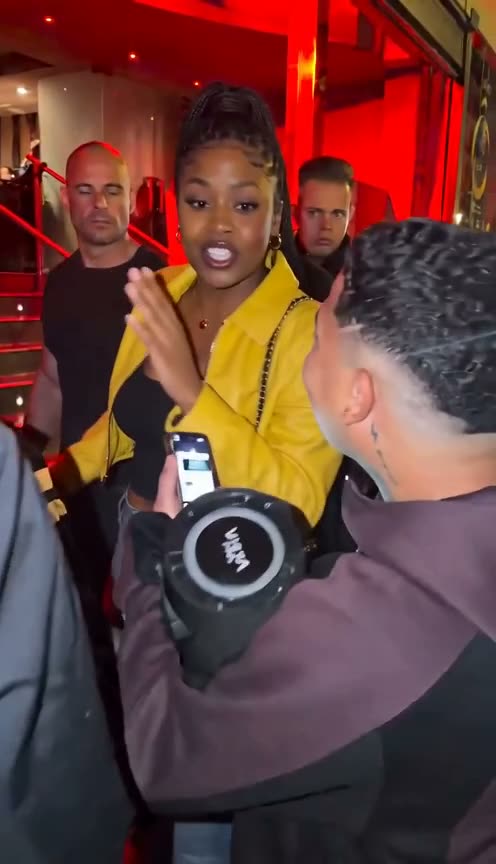
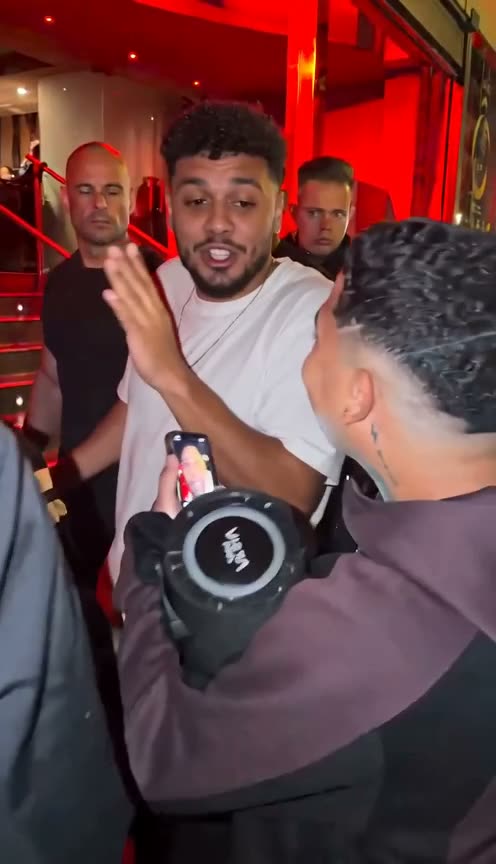
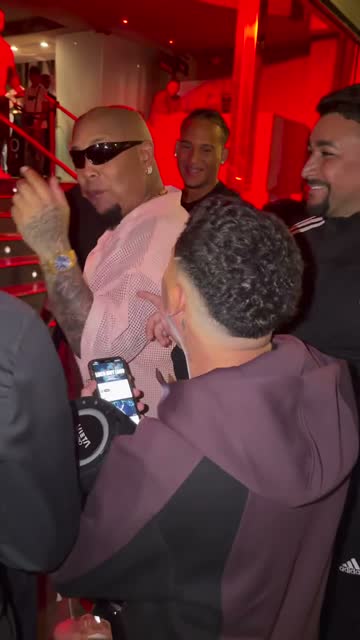
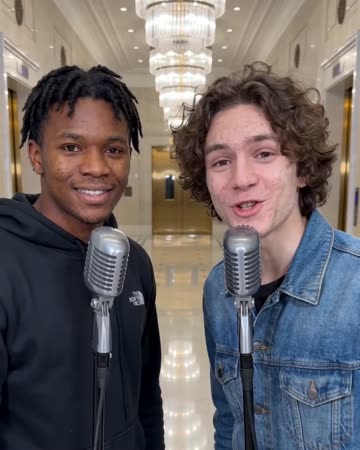
Use the Bulin 47 AI Video Generator to put your appearance into the solo freestyle. Add one portrait; the reference supplies the red-lit street scene and performance. Review the output and credit quote before creating.
Existing reference
Bulin 47 · Yellow jacketClick to preview
Existing reference
Bulin 47 · White teeClick to preview
Original reference
Bulin 47 · OriginalClick play to hear the reference video
Reference media, not a video generated from your photos.
Selected templateBulin 47 Freestyle
1Your photo
0 / 1
Upload one clear, well-lit portrait for the main performer.
You · Main performer01
Clear JPG, PNG, WebP or HEIC · up to 10 MBPhoto tips
One person per photo
Face visible, good light
Avoid sunglasses and heavy filters
What you get
9:16 Portrait720P·14 seconds·Sound included
This video20 credits
Check your photos and credit cost, then create your video.
By generating, you confirm you have permission to use these photos and agree to our Terms · Privacy Policy
THE TEMPLATE
Bulin 47 freestyle.
Your place in the scene.
The Bulin 47 AI Video Generator starts with a recognizable performance: a sunglasses-wearing lead, a red-lit street scene and a surrounding crowd. Your portrait supplies the appearance reference for that main role. The template supplies the performance direction, so you can focus on choosing a clear photo rather than describing every gesture. Use the scene reference to decide whether its framing and energy fit your idea. It is a reference for the intended performance; the generated face, movement and small scene details still need to be checked in your own result.
From your photo
In the Bulin 47 AI Video Generator, one portrait corresponds to the lead performer. Choose a clear image of the adult who should take that role, with the face, hair and shoulders easy to see. The person holding the speaker and the surrounding crowd are not extra upload roles. Your photo does not need the street background, the same pose or matching sunglasses. Keep the original facial features visible in the input; the reference video guides how the character appears during the performance.
Set by the template
The Bulin 47 AI Video Generator uses the template reference to guide the red lighting, street setting, crowd, camera work and freestyle rhythm. The goal is to retain the original performance while changing the main character's appearance, including an output with music and rap vocals. This is an instruction to the model, not a guarantee of identical frames or the same recording. Check fast turns, mouth movement, hands and the complete sound in your finished clip.
Your photos provide the people; the reference provides the performance direction. Example portraits illustrate input requirements. Source footage is a scene reference, so review your own generated result before deciding to share it.
HOW IT WORKS
Make your rap video
in three steps.
Choose the people, review the quoted output and follow the same task through to download. You do not need to write a technical video prompt.
Choose one sharp portrait for the main performer. Check the upload preview for a complete, recognizable face and enough hair and shoulder detail. Replace a blurred or heavily filtered image before submitting. The portrait background is not a scene selector, so a plain indoor photo can still be used with the template's reference performance.
02
Review, then generate
Read the duration, format, quality, sound label and credit quote shown in this generator. Use its current options when choosing an output; a format available on another template may not be offered here. Sign in with the account whose credits you want to use. Confirm permission for the photos, then submit once you are happy with both the input and quoted cost.
03
Watch it. Save it.
Follow the accepted task in the result view or History. Queueing, generation and saving can take different amounts of time, so check the existing task before starting again. When the result is ready, watch the entire clip with sound, inspect the moving faces and download the MP4. Keep its task identifier if you need help with a result or credit question.
A BETTER START
Choose portraits
that make each role clear.
A good input shows who the performer should resemble. Choose an image with visible facial features, natural detail and enough space around the head. You do not need to copy the reference video's pose or background. The model must interpret a still portrait during movement, so a clearer starting image helps communicate the identity without guaranteeing a perfect match in every frame.
Performer 1
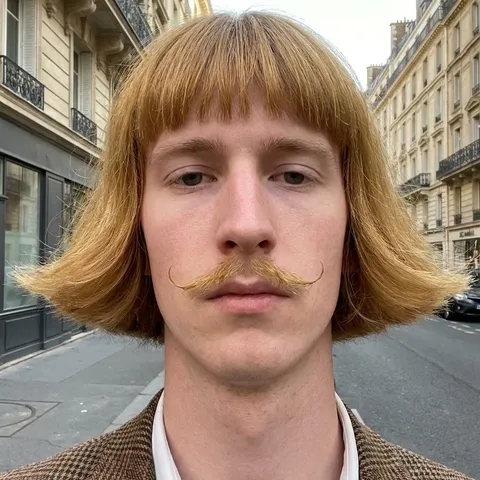
Photo guide examplesThese illustrate photo requirements, not generated video results.
Recommended photos
One adult per image, facing forward or slightly turned, with the whole face easy to recognize.
Sharp eyes, nose and mouth in even light, with natural skin detail and no strong beauty filter.
Keep the hair, whole head and some shoulders in frame; check the actual upload preview before generating.
Photos to avoid
Choose another image if dark sunglasses, a mask, a hand or loose hair hides key facial features.
Avoid motion blur, very dark shadows, heavy smoothing and screenshots where the face has lost useful detail.
Avoid group shots and distant faces; each upload should make its intended performer clear without guessing.
A reference, not an exact copy.
A portrait is an identity reference, not a promise of an exact copy. Clothing, body proportions, hands and facial details can change as a generated character moves or turns. Review the full clip rather than judging only its first frame. If you decide to try a different photo, treat that generation as a separate attempt with its own quote. Only use images you are entitled to process with the pictured person's agreement.
In the Bulin 47 AI Video Generator, one portrait corresponds to the lead performer. Choose a clear image of the adult who should take that role, with the face, hair and shoulders easy to see. The person holding the speaker and the surrounding crowd are not extra upload roles. Your photo does not need the street background, the same pose or matching sunglasses. Keep the original facial features visible in the input; the reference video guides how the character appears during the performance.
02What photos should I choose?
For the Bulin 47 AI Video Generator, use one clear portrait of a consenting adult. A front-facing or slightly turned head is a sensible starting point. Keep the eyes, nose and mouth visible and avoid a tiny face inside a large group photo. You do not need a street background or the original performer's accessories. Check the thumbnail after upload; source photo quality and a complete face matter more than matching the reference pose.
03Can I choose the scene or what is performed?
This is a fixed-performance template. Your portraits provide appearance references, while the chosen template supplies the scene and performance instructions. There is no free-form scene, lyric or topic editor here. A birthday plan or friendship idea does not automatically change what the performers say. Choose the template for a scene you already want, and use a different workflow if your project requires a newly written rap, a different location or a different performance.
04How long is the video, and what does it cost?
Read the current output summary above for duration, aspect ratio, quality, sound and the exact credit quote. These choices belong to this template and can differ from other templates or gallery previews. Pack allowances are estimates based on a standard video; they are not a fixed number of every possible output. Review the quote after changing any available setting and before pressing Generate. A displayed price explains that attempt, not unlimited retries or an included editing service.
05Does the video include sound?
The current sound label tells you whether the selected output is intended to include audio. These reference-based templates aim to retain the source performance's music and rap vocals, but the request alone cannot prove identical music, voices or lip synchronization. A playable reference is also not a recording of your future result. Listen from beginning to end when your clip is ready. Check the beat, voices, timing and ending before sharing a file that contains sound.
06Do I have to keep this page open?
Once submission has been accepted, return to the same task in History using the account that created it. The result view distinguishes queueing, generation, saving and problems that need attention. A task that is still being confirmed is not evidence that nothing happened. Check its record before submitting again, because another submission can create another paid attempt. There is no fixed completion time promised here; keep the task identifier if the status needs investigation.
07What happens if generation fails?
Open the existing task and read its failure reason and actual credit status. A confirmed generation failure returns the credits charged for that task; a pending or unclear submission needs checking before another attempt. A credit return is different from a cash refund for a purchased pack, which is covered by the refund policy. If the task needs help, provide its identifier through support instead of sharing account secrets. Review the input and the recorded issue before deciding whether to retry.
08Where can I watch and download the video?
Use History with the same account that submitted the video. Playback and download become available when generation and result storage have completed. Watch the complete result before saving or posting it, including any ending where a face turns or moves quickly. Download the MP4 to your device for a copy you control. If playback is unavailable while the task is still saving, check that task again; opening a new generator does not recover it by creating another video.
YOUR NEXT TEMPLATE
Find your
next performance.
A different scene starts with a different template.